MSK Ticket Bot – Service Setup (English)
This guide explains how to set up the MSK Transcript Service for your self-hosted bot instance.
The service stores ticket transcripts online and makes them accessible via a public link.
Optionally, Premium users can serve transcripts under their own custom domain.
1. What is the Transcript Service?
When a ticket is closed, the bot generates a complete HTML transcript of all messages.
Without a configured API key, the transcript is sent as a file attachment via DM — as before.
With the MSK Transcript Service, the transcript is uploaded to www.msk-scripts.de instead
and a public link is returned. Users can open the transcript directly in their browser.
Premium users additionally get downloadable file attachments in the transcript and can
configure a custom domain so transcripts are served under their own URL.
2. Subscription Tiers
| Feature | Basic (free) | Premium (€3.99/month) | Premium+ (€6.99/month) |
|---|---|---|---|
| Transcript as link | ✅ | ✅ | ✅ |
| Max. transcript size | 10 MB | 100 MB | 250 MB |
| File attachments in transcript | ❌ | ✅ | ✅ |
| Max. attachment size per ticket | — | 150 MB | 500 MB |
| Custom domain | ❌ | ✅ | ✅ |
| Storage duration | 30 days | 60 days | 90 days |
| Uploads per hour | 30 | 60 | 300 |
| Hosted bot management | ❌ | ✅ | ✅ |
Premium and Premium+ are subscribed in your dashboard via Stripe, with a 14-day free trial
for new customers (cancel anytime). Manage or cancel anytime via the Stripe customer portal.
3. Step 1 – Set up Stripe (subscriptions)
Purpose: Premium and Premium+ are billed via Stripe. This step is only needed
if you self-host the website — on the official msk-scripts.de it is already configured.
Instructions
-
In the Stripe Dashboard → Products, create two products, each with a recurring monthly price:
Ticketbot Premium→ €3.99 / monthTicketbot Premium+→ €6.99 / month
Copy each Price ID (
price_…). Do not configure a trial on the price — the 14-day trial is applied automatically in code for new customers. -
Developers → API keys → copy your Secret key (
sk_…). -
Settings → Billing → Customer portal → enable it (allow cancellation + plan changes).
-
Developers → Webhooks → add an endpoint
https://www.msk-scripts.de/api/webhook/stripewith the eventscheckout.session.completed,customer.subscription.created/updated/deleted,invoice.payment_succeeded,invoice.payment_failed. Copy the signing secret (whsec_…).
Where to add these
These values go into .env.local on the web server (not the bot's .env):
STRIPE_SECRET_KEY=sk_live_xxx
STRIPE_WEBHOOK_SECRET=whsec_xxx
STRIPE_PRICE_PREMIUM=price_xxx
STRIPE_PRICE_PREMIUM_PLUS=price_xxx
4. Step 2 – Create a Discord OAuth App
Purpose: The website reads your Discord server list so you can select
which server the API key should apply to.
Instructions
- Open discord.com/developers/applications
- Click "New Application"
- Give it a name, e.g.
MSK Ticket Verify - Click "OAuth2" in the left sidebar
- Under "Redirects", click "Add Redirect" and enter:
https://www.msk-scripts.de/api/auth/discord-verify/callback
- Click "Save Changes"
- Copy the Client ID shown on the OAuth2 page
- Click "Reset Secret" and copy the Client Secret
Where to add these
DISCORD_VERIFY_CLIENT_ID=your_client_id_here
DISCORD_VERIFY_CLIENT_SECRET=your_client_secret_here
⚠️ This is a separate application from the Discord bot itself.
Do not use the bot token here — only Client ID and Secret.
5. Step 3 – Verify on the Website
This process must be completed once per server by a server administrator.
5.1 Open the website
Go to www.msk-scripts.de/verify in your browser.
5.2 Connect Discord
Click "Sign in with Discord".
You will be redirected to Discord — click "Authorize".
The app requests two permissions:
identify— to recognize your Discord accountguilds— to display the list of your servers
5.3 Select your server
You will see a list of all Discord servers where you have Administrator permissions.
Select the server you want the API key for and click "Generate API Key".
ℹ️ Each server requires its own separate API key.
If you manage multiple servers, repeat the process for each one.
5.4 Save your API Key
After generation, your personal API key is displayed.
Copy it immediately — it will not be shown again.
MSK_API_KEY=a1b2c3d4e5f6...
⚠️ Important: If you run the verify process again for the same server,
a new API key is generated and the old one becomes invalid immediately.
You will need to update the key in your bot's.envand restart the bot.
🔒 Never share this key. Anyone who has it can upload transcripts on your behalf.
✅ You can close this page once you have safely copied the key.
6. Step 4 – Add the API Key to the Bot
Open the .env file in your bot folder and add:
MSK_API_KEY="your_api_key_here"
MSK_API_URL="https://www.msk-scripts.de"
Then restart the bot.
7. Step 5 – Set up a Custom Domain (Premium)
This step is only available for Premium and Premium+ subscribers.
Basic users can skip this step.
A custom domain lets your users access transcripts under your own URL,
e.g. https://tickets.yourserver.com/... instead of https://www.msk-scripts.de/...
7.1 Open the Dashboard
After completing the verify process, click "Go to Dashboard",
or visit www.msk-scripts.de/dashboard directly.
7.2 Enter your domain
In the "Custom Domain" section, enter your desired domain, e.g.:
tickets.yourserver.com
Click "Set". If the DNS is not yet pointing to the server, you will see the DNS instructions.
7.3 Set the DNS A-Record
Log in to your domain registrar (e.g. Cloudflare, Namecheap, IONOS) and create an A-Record:
| Type | Name | Target (IP) |
|---|---|---|
A | tickets (or @ for root) | The IP address shown in the dashboard |
⏱ DNS propagation can take up to 24 hours.
Most providers process changes within a few minutes to an hour.
7.4 Validate DNS and activate
Once DNS has propagated, click "Check DNS" in the dashboard.
If the domain points correctly to the server, it will be activated automatically:
- An Apache2 VirtualHost is created on the server
- A free SSL certificate (Let's Encrypt) is obtained via Certbot
- Your transcripts are immediately accessible under your domain
7.5 Remove a domain
To remove a custom domain, click the trash icon next to the active domain in the dashboard.
The VirtualHost will be removed from the server and transcripts revert to the default URL.
8. Step 6 – Hosted Bot Management (Premium & Premium+)
This step is only available for Premium and Premium+ subscribers who have arranged a hosted bot plan with MSK Scripts.
Basic users can skip this step.
Hosted Premium+ customers can manage their bot entirely through the dashboard — no SSH access or server knowledge required.
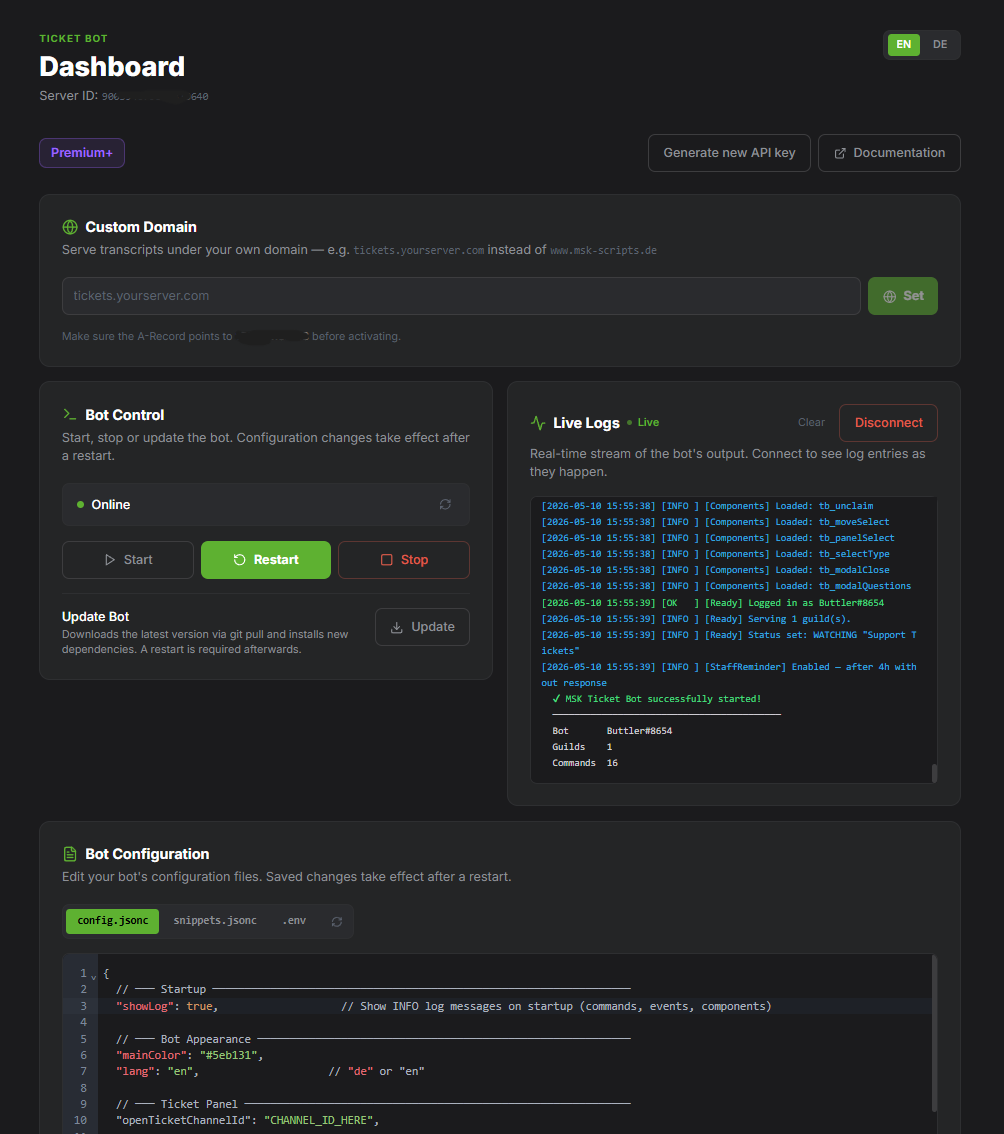
What's available
| Feature | Description |
|---|---|
| Bot Configuration Editor | Edit config.jsonc, snippets.jsonc and .env directly in the browser. Changes take effect after a restart. |
| Bot Control | Start, stop and restart the bot with a single click. |
| One-click Update | Downloads the latest version via git pull, installs new dependencies. Restart required afterwards. |
| Live Log Console | Real-time stream of the bot's PM2 output directly in the browser. |
How to get hosted
Contact MSK Scripts via Discord to arrange a hosted plan.
Once set up, the management panel appears automatically in your dashboard after logging in.
9. Console Output on Startup
When the bot starts you will see the following in the terminal:
                        ███╗   ███╗███████╗██╗  ██╗
                        ████╗ ████║██╔════╝██║ ██╔╝
                        ██╔████╔██║███████╗█████╔╝
                        ██║╚██╔╝██║╚════██║██╔═██╗
                        ██║ ╚═╝ ██║███████║██║  ██╗
                        ╚═╝     ╚═╝╚══════╝╚═╝  ╚═╝
████████╗██╗ ██████╗██╗  ██╗███████╗████████╗    ██████╗  ██████╗ ████████╗
...
                 https://github.com/MSK-Scripts/discord_ticketbot

Checking for updates... up to date (v2.10.0)
Checking API Key... API key valid → Premium+

Connecting to Discord...

[INFO] Database initialized.
[INFO] Commands loaded...
[OK  ] Slash commands registered successfully.
...
[OK  ] Logged in as BotName#1234
[INFO] Serving 1 guild(s).
[INFO] Status set: WATCHING "Support Tickets"

  ✔ MSK Ticket Bot successfully started!
  ──────────────────────────────────────────
  Bot       BotName#1234
  Guilds    1
  Commands  19
Tip: To see colors when running as a systemd service, use:
Possible API Key results
| Output | Meaning |
|---|---|
No API key configured → Basic | No MSK_API_KEY set in .env |
Invalid API key → Basic | The key is incorrect or has been regenerated |
MSK server unreachable → Basic | www.msk-scripts.de is temporarily unreachable |
API key valid → Premium | ✅ Premium active |
API key valid → Premium+ | ✅ Premium+ active |