Service Setup
This guide explains how to set up the MSK Transcript Service for your self-hosted bot instance.
The service stores ticket transcripts online and makes them accessible via a public link.
Paid tiers can serve transcripts under their own domain, and from Premium+ on the bot itself can be hosted by us.
1. What is the Transcript Service?
When a ticket is closed, the bot generates a complete HTML transcript of all messages.
Without a configured API key nothing is uploaded: the transcript is attached as a self-contained HTML file
to the log channel and, unless closeOption.transcriptToUser is false, to the close DM.
With the MSK Transcript Service, the transcript is uploaded to www.msk-scripts.de instead
and a public link is returned. Users can open the transcript directly in their browser.
Paid tiers additionally get downloadable file attachments in the transcript and can
configure a custom domain so transcripts are served under their own URL.
2. Subscription Tiers
| Feature | Basic (free) | Premium | Premium+ | Business |
|---|---|---|---|---|
| Price per month | free | €4.99 | €9.99 | €19.99 |
| Price per year | free | €49 | €99 | €199 |
| Transcript as link | ✅ | ✅ | ✅ | ✅ |
| Max. transcript size | 10 MB | 50 MB | 100 MB | 200 MB |
| File attachments in transcript | ❌ | ✅ | ✅ | ✅ |
| Max. attachment size per ticket | — | 100 MB | 200 MB | 500 MB |
| Custom domain | ❌ | ✅ | ✅ | ✅ |
| Storage duration | 30 days | 180 days | 365 days | 10 years |
| Uploads per hour | 30 | 60 | 120 | 300 |
| Remove the MSK notice | ❌ | ✅ | ✅ | ✅ |
| Hosted bot management | ❌ | ❌ | ✅ | ✅ |
Paid tiers are subscribed in your dashboard via Stripe, with a 14-day free trial and no card
for new customers (cancel anytime). Manage or cancel anytime via the Stripe customer portal.
3. Step 1 – Create a Discord OAuth App
Purpose: The website reads your Discord server list so you can select
which server the API key should apply to.
Instructions
- Open discord.com/developers/applications
- Click "New Application"
- Give it a name, e.g.
MSK Ticket Verify - Click "OAuth2" in the left sidebar
- Under "Redirects", click "Add Redirect" and enter:
https://www.msk-scripts.de/api/auth/discord-verify/callback
- Click "Save Changes"
- Copy the Client ID shown on the OAuth2 page
- Click "Reset Secret" and copy the Client Secret
Where to add these
DISCORD_VERIFY_CLIENT_ID=your_client_id_here
DISCORD_VERIFY_CLIENT_SECRET=your_client_secret_here
⚠️ This is a separate application from the Discord bot itself.
Do not use the bot token here, only Client ID and Secret.
4. Step 2 – Verify on the Website
This process must be completed once per server by a server administrator.
4.1 Open the website
Go to www.msk-scripts.de/ticketbot/verify in your browser.
4.2 Connect Discord
Click "Sign in with Discord".
You will be redirected to Discord, click "Authorize".
The app requests two permissions:
identify: to recognize your Discord accountguilds: to display the list of your servers
4.3 Select your server
You will see a list of all Discord servers where you have Administrator permissions.
Select the server you want the API key for and click "Generate API Key".
ℹ️ Each server requires its own separate API key.
If you manage multiple servers, repeat the process for each one.
4.4 Save your API Key
After generation, your personal API key is displayed.
Copy it immediately: it will not be shown again.
MSK_API_KEY=a1b2c3d4e5f6...
⚠️ Important: If you run the verify process again for the same server,
a new API key is generated and the old one becomes invalid immediately.
You will need to update the key in your bot's.envand restart the bot.
🔒 Never share this key. Anyone who has it can upload transcripts on your behalf.
✅ You can close this page once you have safely copied the key.
5. Step 3 – Add the API Key to the Bot
Open the .env file in your bot folder and add:
MSK_API_KEY="your_api_key_here"
MSK_API_URL="https://www.msk-scripts.de"
Then restart the bot.
6. Step 4 – Set up a Custom Domain (Premium)
This step is available on every paid tier (Premium, Premium+, Business).
Basic users can skip this step.
A custom domain lets your users access transcripts under your own URL,
e.g. https://tickets.yourserver.com/... instead of https://www.msk-scripts.de/...
6.1 Open the Dashboard
After completing the verify process, click "Go to Dashboard",
or visit www.msk-scripts.de/ticketbot/dashboard directly.
6.2 Enter your domain
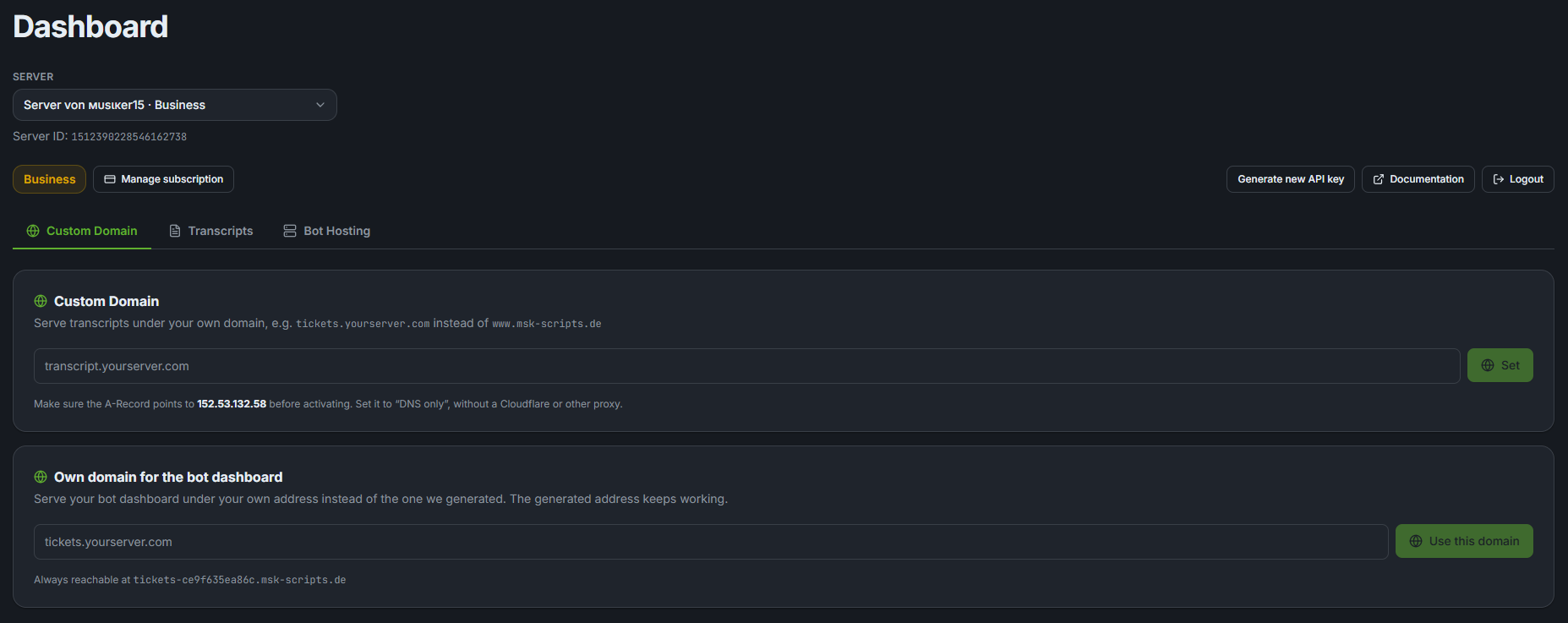
In the "Custom Domain" section, enter your desired domain, e.g.:
tickets.yourserver.com
Click "Set". If the DNS is not yet pointing to the server, you will see the DNS instructions.
6.3 Set the DNS A-Record
Log in to your domain registrar (e.g. Cloudflare, Namecheap, IONOS) and create an A-Record:
| Type | Name | Target (IP) |
|---|---|---|
A | tickets (or @ for root) | The IP address shown in the dashboard |
⏱ DNS propagation can take up to 24 hours.
Most providers process changes within a few minutes to an hour.
6.4 Validate DNS and activate
Once DNS has propagated, click "Check DNS" in the dashboard.
If the domain points correctly to the server, it will be activated automatically:
- An Apache2 VirtualHost is created on the server
- A free SSL certificate (Let's Encrypt) is obtained via Certbot
- Your transcripts are immediately accessible under your domain
6.5 Remove a domain
To remove a custom domain, click the trash icon next to the active domain in the dashboard.
The VirtualHost will be removed from the server and transcripts revert to the default URL.
7. Step 5 – Hosted Bot Management (Premium+ & Business)
This step is for Premium+ and Business subscribers who want us to run the bot for them. Basic users, and anyone happy running it themselves, can skip it.
You set hosting up yourself in the dashboard. No SSH access, no server knowledge, and no ticket to open first.
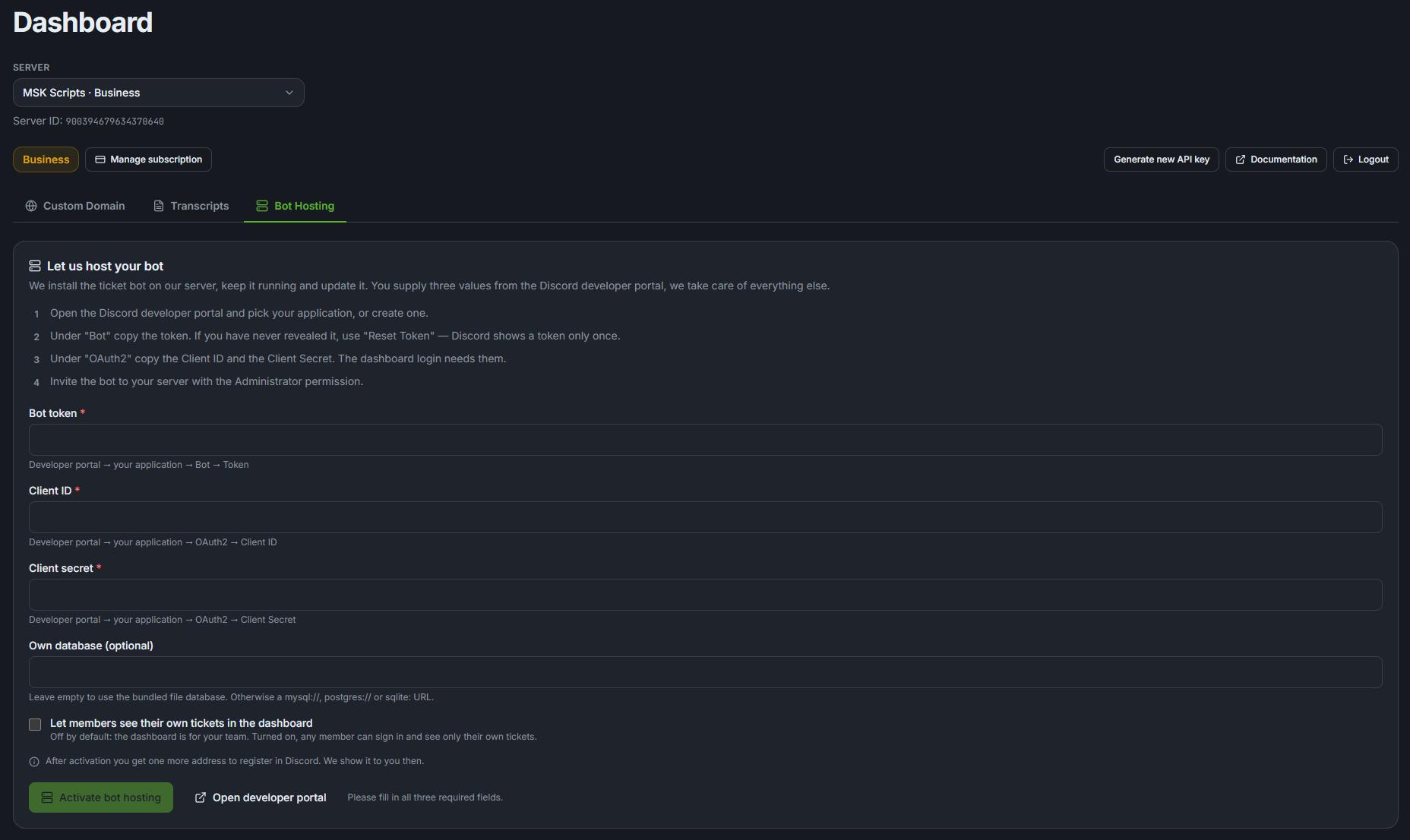
Setting it up
-
Open msk-scripts.de/ticketbot/dashboard and go to the Bot Hosting tab.
-
Enter three values from the Discord developer portal:
Value Where to find it Bot token Your application → Bot → Token. Discord shows a token only once, so use Reset Token if you never revealed it. Client ID Your application → OAuth2 → Client ID Client secret Your application → OAuth2 → Client Secret Everything else, from the guild id and API key to ports and session secrets, is filled in for you.
-
Press Activate bot hosting. We install the bot, start it, and check that it actually came up. Installing takes a couple of minutes; you can close the page while it runs.
-
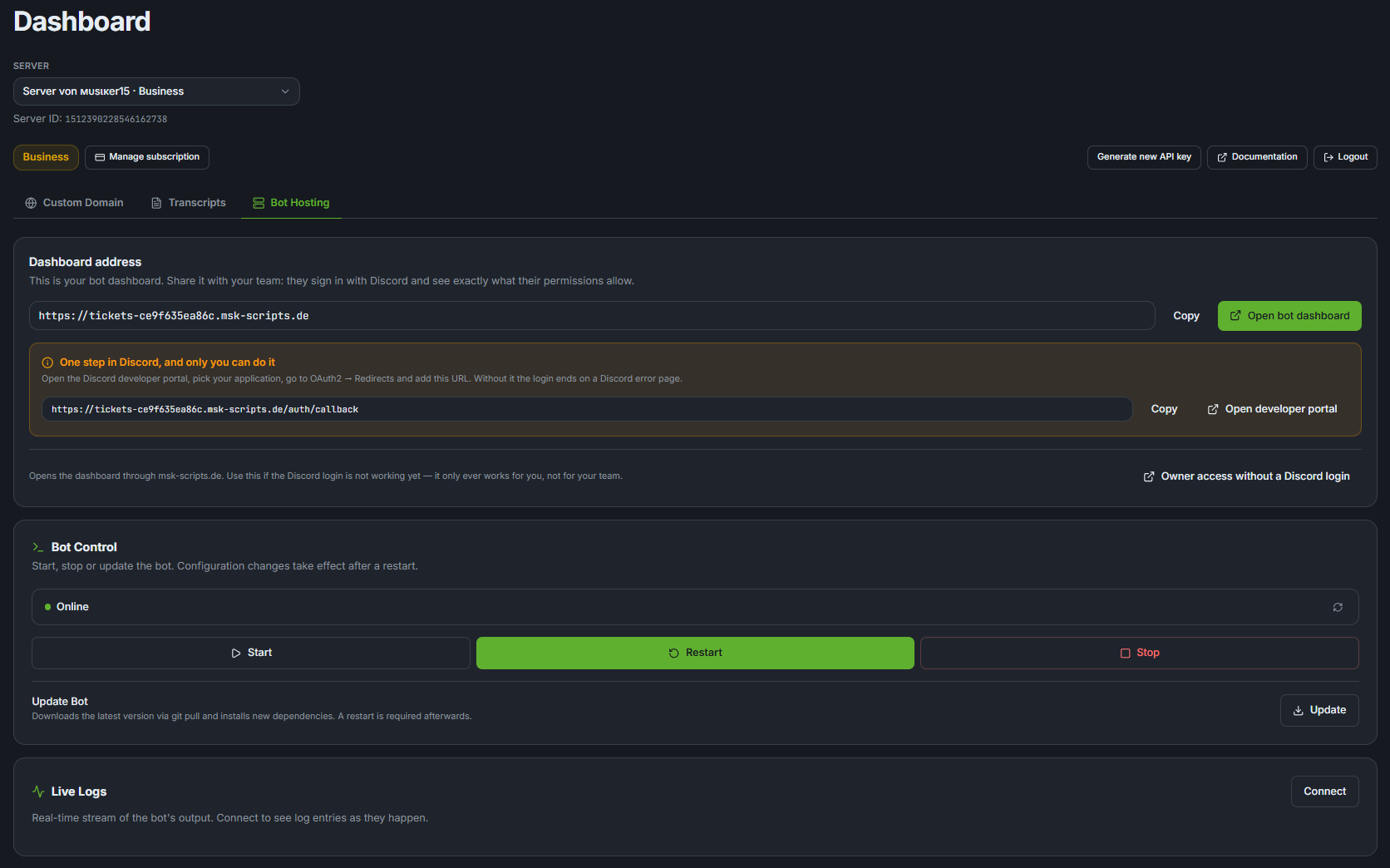
Register the redirect URL. The dashboard shows you a URL like
https://tickets-a3f9c1b408d2.msk-scripts.de/auth/callback. Add it in the developer portal under OAuth2 → Redirects. Only you can do this, and the login to your bot's dashboard does not work without it.
If the bot does not come up, you get its own log back and can correct the value right there. The bot is not reinstalled for that, only restarted.
What's available
| Feature | Description |
|---|---|
| Its own address | Your bot's dashboard is published at tickets-<id>.msk-scripts.de, or under a domain of your own set in the Custom Domain tab. The TLS certificate is included either way. |
| A login for your team | That dashboard runs its own Discord login, so your staff sign in with their own account and see exactly what their permissions allow. This is the part the old setup could not do: it only ever let the server owner in. |
| Bot Control | Start, stop and restart the bot with a single click. |
| One-click Update | Downloads the latest version via git pull and installs new dependencies. Restart required afterwards. |
| Live Log Console | Real-time stream of the bot's PM2 output directly in the browser. |
| Credentials form | Correct the token or client secret without a terminal. It matters precisely when the bot is down, because then its own dashboard is the thing you cannot reach. |
Removing it again
Remove hosting in the same tab stops the bot, takes its address offline and archives the installation. The archive is deleted for good after 14 days.
Within those 14 days, activating hosting again asks whether you want the old installation back. Choosing that returns it with its tickets, its settings and the same address, so you do not have to touch the Discord developer portal a second time.
8. Console Output on Startup
When the bot starts you will see the following in the terminal:
                        ███╗   ███╗███████╗██╗  ██╗
                        ████╗ ████║██╔════╝██║ ██╔╝
                        ██╔████╔██║███████╗█████╔╝
                        ██║╚██╔╝██║╚════██║██╔═██╗
                        ██║ ╚═╝ ██║███████║██║  ██╗
                        ╚═╝     ╚═╝╚══════╝╚═╝  ╚═╝
████████╗██╗ ██████╗██╗  ██╗███████╗████████╗    ██████╗  ██████╗ ████████╗
...
                 https://github.com/MSK-Scripts/discord_ticketbot

Checking for updates... up to date (v2.20.0)
Checking API Key... API key valid → Premium+

Connecting to Discord...

[INFO] Database initialized.
[INFO] Commands loaded...
[OK  ] Slash commands registered successfully.
...
[OK  ] Logged in as BotName#1234
[INFO] Serving 1 guild(s).
[INFO] Status set: WATCHING "Support Tickets"

  ✔ MSK Ticket Bot successfully started!
  ──────────────────────────────────────────
  Bot       BotName#1234
  Guilds    1
  Commands  19
Tip: To see colors when running as a systemd service, use:
Possible API Key results
| Output | Meaning |
|---|---|
No API key configured → Basic | No MSK_API_KEY set in .env |
Invalid API key → Basic | The key is incorrect or has been regenerated |
MSK server unreachable → Basic | www.msk-scripts.de is temporarily unreachable |
API key valid → Premium | ✅ Premium active |
API key valid → Premium+ | ✅ Premium+ active |
API key valid → business | ✅ Business active |